
Send an HTML report to your manager so it opens properly on their phone
Quick answer
Don't send the .html file itself: on a phone it opens as a preview or a download, and on an iPhone that preview runs no scripts. Send a PDF when the report is finished and only needs reading. Send a link when its buttons or form must work, and publish the blank form, not the filled-in report.
Free plan: no credit card, 1 published page.
On this page
- What a phone does with an .html attachment
- 3 ways to send the report, compared
- Send a finished report as a PDF
- Send a report that must work as a link
- Publish the blank form, not the filled-in report
- Send the report as a link in 4 steps
- When the report must stay inside the company
- Frequently asked questions
- Sources
ChatGPT, Claude, or Gemini made you an incident report, an inspection, or a daily log as an .html file. It looks right on your computer. Your manager will read it on a phone, between other jobs. This guide shows what a phone does with the file, the 3 ways to send it, and which one fits which report.
For the full list of hosts and every way to turn a file into a link, see How to share an HTML file as a link. Google's and Apple's pages here were read on November 4, 2026.
What a phone does with an .html attachment
The file arrives. The page often doesn't.
- On an iPhone it opens as a preview. Tap an
.htmlfile and it opens in Quick Look. In our iOS 26.3 test, that preview showed the text and CSS but ran no JavaScript and loaded nothing from the web, as How to open an HTML file on iPhone describes. A report with tabs, a chart, or a checklist that ticks looks finished and does nothing. - On Android it depends on the app. Some file apps open it in Chrome, others show the code. How to open an HTML file on Android goes through the apps.
- Pictures on your computer stay there. A photo the page points to as
photo.jpgis a file on your disk, so your manager sees a broken image. - Gmail doesn't block it. Gmail's list of blocked file types doesn't include
.html. A company mail server can still hold it back, and your manager still gets a file, not a page.
3 ways to send the report, compared
| Send it as | What your manager gets on the phone | Buttons and scripts | Photos | Fix it after sending | Who can open it |
|---|---|---|---|---|---|
The .html file | A file to open; a preview on iPhone | Not in the iPhone preview | Only photos inside the file | Send a new file | Anyone you send it to, and anyone they forward it to |
| A PDF | A document every phone opens | None: the PDF is a picture of the page | Yes, the ones on the page when you saved it | Send a new PDF | Anyone you send it to, and anyone they forward it to |
| A link to the published page | The page, in the phone's browser | Yes | Only photos inside the page or at https:// addresses | Publish a new version at the same link | On Convika Free, anyone with the link: the page is Public. On Pro, a private link or a password |
A finished report someone only needs to read goes best as a PDF. A form someone fills in, or a page with buttons, goes as a link.
Send a finished report as a PDF
A PDF keeps the layout and opens on every phone. It keeps nothing that runs: no buttons, no tabs, no form.
- On a computer, in Chrome. Open the
.htmlfile in Chrome, then "Click File Print", or press Ctrl + P (⌘ + P on a Mac), as Google's Chrome help says. In the window that opens, pick Save as PDF as the destination. - On an Android phone, in Chrome. Google's steps: "At the top right, tap More Share", "Select Print", then "To save your print preview as a PDF, tap Save as PDF."
- On an iPhone. Chrome's help for iPhone covers printing with AirPrint, not saving a PDF. Make the PDF on a computer or an Android phone, or send a link.
Check the PDF before you send it: every field filled in, every photo there, nothing cut off at the page edge. Then attach it to an email or send it in your company's chat.
Send a report that must work as a link
A link opens the page itself in the phone's browser, so its scripts run. Send a link when your manager has to do something on the page: tick items, fill in a form, open tabs, or tap through photos.
Think about what is on the page before you publish it. On Convika's Free plan a published page is Public: anyone with the link can open it, and it can show up in search results and in Convika's gallery. A report that names people, an address, or an injury doesn't belong at a public address. For that, choose Private link or Only people with the password (Pro, $12 a month), or send the PDF.
Publish the blank form, not the filled-in report
If staff write the same kind of report every week, publish the empty form once and send its link to the team. Each person fills it in on their phone and hands the finished report on. What they type stays on their phone, so the public page holds no one's report.
Convika's field report template makes that kind of page. It has the fields the AI sets for your job: text, choice lists, yes / no / N/A checks, a date and time that starts at now, a place with Use my location, and photos. A finished report goes out through the page's own buttons: Save as PDF, the phone's share sheet or WhatsApp, Excel (CSV), or HTML with photos. Photos go out in the PDF, a share, or the HTML copy.
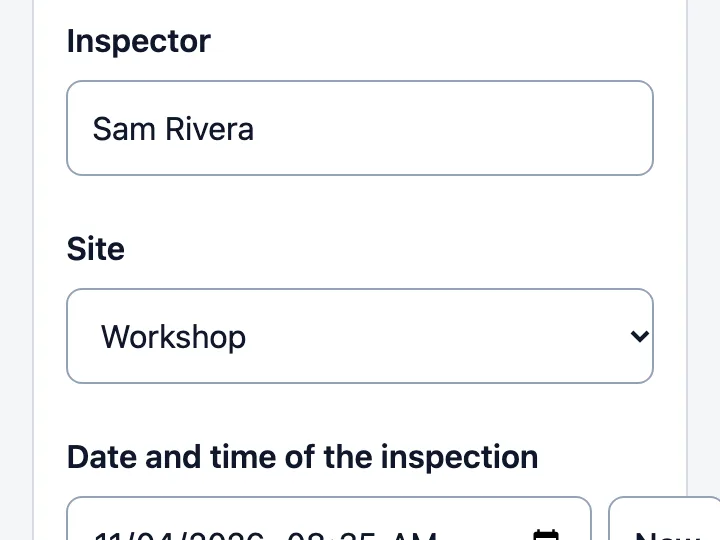
Field report form
Turn a site inspection, shift handover, or incident report into a page staff fill in on a phone, add photos to, and hand on as a PDF or on WhatsApp.
To collect each report in one place too, make the page with Send to the dashboard. Each report's answers and photos then arrive in your Convika dashboard as one form entry, and you get an email for each one. On the Free plan your dashboard shows 50 entries a month. For a whole shift's notes on one page, see A shift handover form your team fills in on their phones.
Send the report as a link in 4 steps
1. Put the report in one file
Convika takes one .html or .htm file, up to 2 MB, or the same code pasted into the box. If its photos are separate files, ask the AI that made it: “Put the photos and the CSS inside the HTML file so the report is one file.” Photos inside the file count toward the 2 MB.
2. Publish it
Drop the file into the upload box at the top of this page. Click Keep this page — free, no card and sign up. The page moves into your account, where its scripts run. Click Publish page. Under Who can open this page?, choose Public and click Next. The first time, click Publish free. For a report with personal details, choose Private link or Only people with the password instead (Pro).
3. Open the link on your own phone
Copy the address under Live URL, such as yourpage.convika.page. Open it on your phone first, and check that every photo shows and every button works.
4. Send the link
Paste the address into an email, a text, or WhatsApp. Your manager taps it and the page opens in the phone's browser, with no app and no account. To show it on a wall or a printed sheet, click Show QR code on the page's screen. To fix the report later, upload the new file under Update from an HTML file and publish it: the link and the QR code stay the same, as How to update an AI-made page without changing its link explains.
When the report must stay inside the company
A published Convika page is on the internet, outside your company's systems. If your company's rules say a report must not leave them, send the PDF through the company's own email or chat, and ask your IT team where reports belong. For pages that must stay inside Microsoft 365, see How to share an HTML file in SharePoint or OneDrive. For free places to host a form that colleagues fill in, see Free ways to host an AI-made HTML form for internal company use.
Frequently asked questions
How do I send an HTML file so it opens on a phone?
Send a link, not the file. Publish the page and send its address: it opens in the phone's browser with its scripts working. An .html attachment opens as a file, and on an iPhone as a Quick Look preview that ran no JavaScript in our iOS 26.3 test. If the report only needs reading, a PDF works too.
Should I send my incident report as a PDF or as HTML?
As a PDF when it's finished and your manager only reads it: every phone opens a PDF, and it carries the photos on the page. As a link when the page has to work, such as a form or a checklist. Avoid the bare .html file: on a phone it often opens as a preview or a download.
Why does my HTML file look broken on my manager's phone?
Because the phone shows the file, not a web page. On an iPhone, Quick Look shows the text and CSS but runs no JavaScript and loads nothing from the web. Images saved on your computer don't travel with the file either. Publishing the page and sending the link fixes both, if the images are inside the file or at https:// addresses.
How do I save an HTML report as a PDF on my phone?
On Android, open it in Chrome, tap More, then Share, then Print, and tap Save as PDF, as Google's help says. Chrome's help for iPhone covers printing with AirPrint, not a PDF, so make the PDF on a computer or an Android phone. A page made with Convika's field report template has its own Save as PDF button.
Can I send an HTML report on WhatsApp?
As a file, WhatsApp delivers a document your manager has to open. As a link, the page opens in one tap. How to share an HTML file on WhatsApp covers both. A page made with the field report template has a WhatsApp button that opens WhatsApp with the report's text.
Is a link to my report private?
On Convika Free, no: a published page is Public, so anyone with the link can open it, and search results and Convika's gallery can show it. On Pro, Private link keeps it out of search, and Only people with the password asks for a password first. For a report with personal details, send a PDF through your company's email instead, or publish only the blank form.
Sources
- Print from Chrome: computer (Google Chrome Help) (read on November 4, 2026)
- Print from Chrome: Android (Google Chrome Help) (read on November 4, 2026)
- Print from Chrome: iPhone and iPad (Google Chrome Help) (read on November 4, 2026)
- File types blocked in Gmail (Gmail Help) (read on November 4, 2026)
Next step
How to see who visits a page you made with AI
Count visitors and see where they came from on a page ChatGPT, Claude, or Gemini made. GA4, Cloudflare, Plausible, Clarity, and Convika compared.
Related articles
- A shift handover form your team fills in on their phones, made with AIMake a shift handover form with AI that staff open from one link, fill in on a phone, add photos to, and hand on as a PDF or on WhatsApp. Steps and limits.
- Free ways to host an AI-made HTML form for internal company useConvika, Google Forms, Jotform, Netlify, GitHub Pages, and SharePoint for a form colleagues fill in: what each free plan keeps, who can open it, and photos.
- How to share an HTML file as a link that opens on any phoneEmail and Google Drive open HTML on a phone without scripts. Compare 5 hosts (Netlify Drop, Tiiny Host, Pagelive, GitHub Pages, Convika) and follow 4 steps.
- How do I open an HTML file on an iPhone, and how do I send one that opens?Tap an .html file in the iPhone Files app and you get a preview with no scripts. Open it in Safari with a free viewer, or send a link instead of the file.
- How do I open an HTML file on Android, and how do I send one that opens?Android asks which app opens an .html file. In our emulator test, Chrome ran the page and HTML Viewer didn't. Use Chrome or a free viewer, or get a link.
- How to Send an HTML File by Email (Gmail, Outlook, or Link)Gmail and Outlook let you attach .html files, though work filters can block them and mail apps may show code. Or publish it and email a link instead.