
AI template
Field report form with photos, made with AI
Turn a site inspection, shift handover, or incident report into a page staff fill in on a phone, add photos to, and hand on as a PDF or on WhatsApp.
Make your own
Convika's AI makes your own tool in the example's format, fitted to what you write. Try it on your phone right away, no account needed.
Making it here is free and uses no AI credits. Once you sign up, each page the AI makes in your dashboard uses 1 credit, and new accounts start with 10.
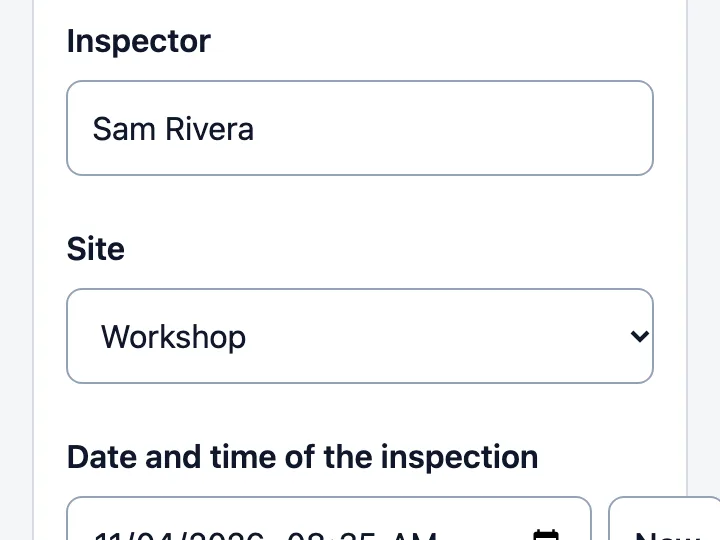
A report your team fills in where the work happens: a site inspection, a shift handover, a maintenance log, a patrol checklist, an incident or near miss. Staff open one link on their phones, fill it in, add photos, and hand it to a supervisor or the operations centre. No app to install, no sign-in.
The date and time start at now, and "Use my location" fills in where. A finished report goes out as a PDF, through the phone's share sheet or WhatsApp, as an Excel (CSV) file, or as one HTML file with the photos inside.
To collect reports, add "Send to the dashboard": the text of each report arrives in your dashboard as one form entry, and you get it by email. Photos stay on the phone until the person hands them on. On the Free plan, your dashboard shows 50 entries a month.
How it works
1
Say what you want
Write what to change from the example: the subject, how many, the colors. Tap an idea to start from it.
2
The AI makes the page
Convika's AI writes the page in a few minutes, and you see a preview. Ask for changes in plain words until it's right.
3
Publish and share the link
Publish the page to get its own URL, then share it on X, LINE, or in class.
What it costs
Making a page uses 1 AI credit, and each change you ask for uses 1. A new account starts with 10 credits, so you can try a template without paying. Publishing on the Free plan is free.
Don't use the names, images, or text of existing shows, games, characters, or brands. The AI makes an original page on the same theme.
Use these instructions with ChatGPT or Claude
This is the template's description of its example, as Convika's AI gets it. Write what you want on the last line, paste it into ChatGPT, Claude, or another AI, and it writes the page as one HTML file.
Make a fill-in report page for this job.

- The job: a site inspection: walk a yard or a workshop, check each item, and photograph anything that needs fixing
- Who fills it in, and who gets it: the inspector fills it in on a phone; the site manager gets it
- Fields: inspector, site (North yard, South yard, Workshop, Storage hall, Office block), date and time, where on the site, weather, walkways clear, fire extinguishers in place, lighting working, safety gear worn (each yes / no / N/A), overall condition (good, needs attention, unsafe), issues found, action needed; a required photo of the site and an optional photo of an issue
  (if not given, choose the fields the job needs: who, when, where, what happened from a short list, a description, photos)
- Collect each report in the dashboard: yes: send each report's text to the dashboard too
- Field kinds: short text, long text, a choice list as buttons, a dropdown for a long list, a yes / no / N/A check, a date and time that starts at now, a location with a "Use my location" button that fills in coordinates, and photos. Any of them can be required.
- Keep the fields, choice lists, and photo slots in the page's data block (<script type="application/json" data-cvk-slot="report">) and draw the page from it, so the lead can change a list later and republish at the same link. Button and message texts go in the "words" block.
- Draw the fields without a <form>.
- Keep the example's script as it is and change the data blocks; change the code only where the request needs something the example doesn't do.
- Write every text in the page's language: the title, each field's label and options, each photo's label, and the "words" block.
- Outputs: Save as PDF (the browser's print, photos included), Share (the phone's share sheet with the text and photos, else a WhatsApp button that opens WhatsApp with the text; a button, never a link whose address holds the report, since a published page records each link's address as a click), Excel (a CSV file with a header row), and an HTML copy with the photos inside. Keep all four, with the example's button ids, even when the request names only one way to hand a report on: the supervisor or the office may need another.
- When collecting: put one empty <div data-convika-form></div> in a "Send to the dashboard" part. Convika puts the owner's form there, and it sends the report's text fields as one entry, which the owner sees in the dashboard and gets by email. The page hands its answers to that form in two steps: (1) hide the form's own fields with CSS (.cvk-form form > div, .cvk-form form > fieldset { display: none }), so only its button shows; (2) listen for the form's submit on the document in the capture phase, check the required fields and photos, and stop the submit when something is missing; otherwise write each answer into the form's input of the same name as the field's id (add a hidden input when there is none), and let the submit go on. Every form field is optional, so without step 2 the dashboard gets empty entries. When not collecting: leave that part out, and send nothing anywhere.
- Photo inputs sit outside the Convika form, and photos stay on the phone. They leave it only when the person hands on the PDF, a share, or the HTML copy (Convika's forms take no files yet).
- Before any output or send, list what's missing and move to the first of it. Keep typed answers in the browser until "Start a new report".
- Phone first: fields and buttons at least 44px tall (min-height: 44px; with Tailwind, min-h-[44px]), body text 16px, no sideways scrolling. For a right-to-left language such as Arabic, <html dir="rtl">, with the layout following it.

Write it as one HTML file with the CSS and JavaScript inside. Don't send anything people type anywhere, and don't use image files. Make it work on a phone held upright. Keep the bottom right of the screen clear: a Support button may show there.

That is the example. Keep how it works, its screens, and its feel, and change the content to fit what I want.
What I want: ___
Questions
Where do reports go?
On a page with "Send to the dashboard", the text of each report arrives in your Convika dashboard under Form entries, and you get it by email. Photos aren't sent: they stay on the person's phone, and they hand them on in the PDF, a share, or the HTML copy. The Free plan shows 50 entries a month; later ones are still saved. As on any published page, the text of each button pressed, such as "Save as PDF", is recorded as a click.
Do staff need an app or an account?
No. They open the link in their phone's browser. What they type stays on that phone until they start a new report.
Can I change a choice list later?
Yes. Ask the AI, for example "add Roof to the sites", and publish again: the same link shows the new list. Each change uses 1 AI credit.
Other templates
- Class team quiz
Enter a subject and topic, and the AI makes a team quiz page you can project in class.
- Personality test
Pick a theme, and the AI makes a personality test page: a few questions, a result type, and a link to share it.
- Flashcards and quiz
List the words as front / back, and the AI makes flashcards you can flip plus a multiple-choice quiz.
- Memory match
List the pairs, and you get a memory game page where players flip cards to find matching pairs.
- Reaction time test
You get a game page that measures how fast people tap when the screen changes, in milliseconds.
- Catch game
Choose what to catch and what to dodge, and you get a game page where things fall from the top of the screen.
- Science or math simulation
Say what to simulate and for which grade, and the AI makes a page where students move sliders and watch what changes.
- Timer, calculator, or tracker
Pick a timer, a calculator, or a tracker and say what it's for, and the AI makes a tool page that's ready to use as soon as it opens.
- Event page and sign-up
Write the event's name, date, and place, and the AI makes a page that announces it and takes sign-ups.
- Shop menu and info
Write your shop's name and menu, and the AI makes a page that shows the menu, prices, and hours clearly on a phone.
- 1 in how many? roll
List some traits and their options, and you get a page that rolls a random combination, works out how rare it is, and lets players share it.
- 10-second score attack
Pick the emoji to tap and the time limit, and you get a game page where players tap pop-up targets for the highest score.
- Quiz battle
Write the questions or name a theme, and you get a timed four-choice quiz page where fast answers score more and players share their score to challenge friends.
- Stack tower
Pick the emoji that rides on top and the difficulty, and you get a game page where players tap to stack moving blocks as high as they can.
- Trip itinerary
Describe your trip and get a draft itinerary with daily plans, a meeting spot, packing and rain options, and a page to share.