
Make a field report form with AI that your team fills in on their phones
Quick answer
Ask an AI, or Convika's field report template, for a report page made for phones, publish it, and send your team one link. Staff open it in the browser with no app or sign-in, add photos, and send it on as a PDF, on WhatsApp, or as a CSV file. The page can also send each report, photos included, to your dashboard.
Free plan: no credit card, 1 published page, 50 form entries a month shown and emailed.
On this page
A guard sees a broken gate at 2 a.m. A cleaner finds a leak. A technician finishes a service visit. Each of them has a phone, and you want the same few facts from each: who, when, where, what happened, and a photo. A report page made for that job, published at one link, gets you there without an app for anyone to install.
This guide shows how to make that page with AI, how staff hand a report on, and when Google Forms, Jotform, or Typeform is the better fit. The vendor pages quoted were read on November 4, 2026.
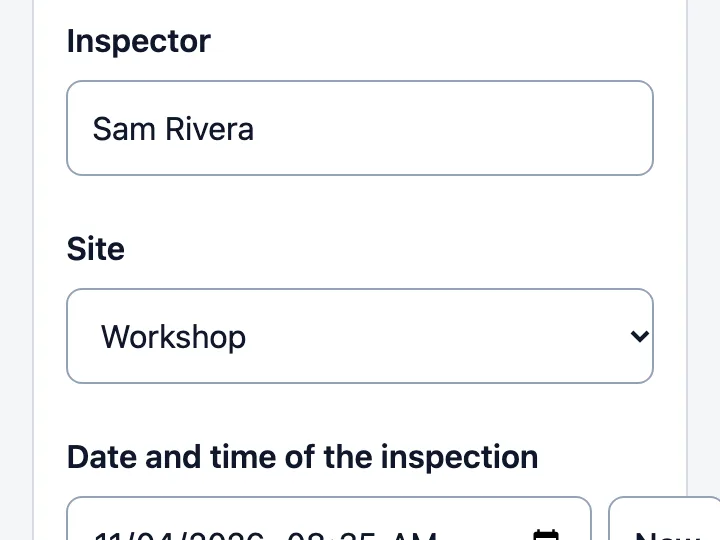
Field report form
Turn a site inspection, shift handover, or incident report into a page staff fill in on a phone, add photos to, and hand on as a PDF or on WhatsApp.
What a phone report form needs
A form for the field is filled in with one hand, outdoors, often in a hurry. Before you ask any AI for one, decide on these:
- Fields that take taps, not typing. Choices as buttons (Gate, Car park, Loading bay), a yes / no / N/A check per item, and a date and time that starts at now.
- Where it happened. A "Use my location" button that fills in coordinates, with a text field beside it for a landmark.
- Photos. A photo slot that opens the camera, marked required where the report needs proof.
- A way to hand it on. Who reads the report, and how: a PDF for the file, a WhatsApp message to the supervisor, a CSV row for a spreadsheet.
- Nothing lost on a bad connection. What a person has typed should still be there if they lock the phone and come back.
Write these down as your request. The more exact the list of sites and choices, the less you fix afterwards.
Make it with Convika's field report template or any AI
The template. Convika's field report template makes this kind of page from one request. Write the job, who fills it in and who gets it, and the fields, or leave the fields out and the AI picks them for the job. Try the example above first: it runs in a frame that sends nothing. You can make your own version on the template's page without an account; it's a preview that works for a few minutes. Sign up free to keep it and publish it. Making a page in the dashboard uses 1 AI credit, and new accounts start with 10.
ChatGPT, Claude, or Gemini. The template's page also shows its full instructions under Use these instructions with ChatGPT or Claude. Copy them, write your job on the last line, and the AI writes the page as one HTML file. Then publish that file as a link, as in how to share an HTML file as a link.
A page from the template has these field kinds: short text, long text, a number, choice buttons, a dropdown for a long list, yes / no / N/A, a date and time, a location with Use my location, and photos. Any of them can be required. Before a report goes out, the page lists what's missing and moves to the first gap.
How staff hand a report on
Under Hand it on, a report from the template's page goes out four ways:
- Save as PDF. The browser's print, with the photos in it. On Android, Chrome's help says to choose Save as PDF as the printer.
- Share the report. The phone's share sheet, with the text and photos, into whatever app the person uses, and a WhatsApp button beside it that opens WhatsApp with the report's text.
- Excel (CSV). One CSV file with a header row, which opens in Excel or Google Sheets.
- HTML with photos. One HTML file with the photos inside, for a record that keeps everything together.
Typed answers stay on that phone until the report is sent to the dashboard or the person taps Start a new report. Photos are kept only while the page is open, so a report with photos is best sent before the person closes it.
Collect every report in your dashboard
If you want the reports in one list instead of scattered across chats, make the page with collecting on. It then has a Send to the dashboard part. Each report arrives in your Convika dashboard as one form entry with its photos, and you get an email for each one.
The photos also go out with the PDF, a share, or the HTML copy that the person hands on.
On the Free plan, the dashboard shows the first 50 entries a month and emails them; later ones are still saved. As on any published Convika page, the text of each button pressed, such as Save as PDF, is recorded as a click.
Google Forms, Jotform, Typeform, or a report page
Form builders collect answers into their own list. A report page is a page: it does the handing on itself, on the phone. Which one fits depends on where the report has to end up.
| Google Forms | Jotform (Starter, free) | Typeform (Free) | A report page on Convika Free | |
|---|---|---|---|---|
| Staff need an account | Only for a file upload question: responders "need to sign in to a Google Account" | Jotform doesn't say on its upload help page | Typeform doesn't say on its pricing page | No |
| Where photos go | "A new folder on Google Drive" of the form's owner | Into Jotform's "Upload space: 100 MB" | Typeform doesn't say whether Free takes uploads | Into your dashboard with the report, with collecting on; also out with the PDF, a share, or the HTML copy |
| Answers on the free plan | Google's help doesn't state a cap | "Monthly submissions: 100", "Active forms: 5" | "a limited number of responses per month", no number given | 50 entries a month shown and emailed; later ones saved |
| PDF or WhatsApp from the phone | Not on the pages read | A Download PDF button on the Thank You page, "to download a PDF copy of the submitted data" | Not on the pages read | Both built into the page |
| Branding on the free plan | — | "Jotform branding included" | Typeform doesn't say | The Convika bar at the foot of the page |
Sources: Google's help on question types, Jotform's pricing, Jotform's upload form help, Jotform's help on Thank You page buttons, and Typeform's pricing, read on November 4, 2026. Convika's column comes from its own code.
Choose a form builder when your company already runs Google Workspace and wants the answers in a Sheet and the files in Drive. To put a Google Form inside your own page, see how to embed a Google Form in HTML. Choose a report page when staff shouldn't need an account, when the supervisor wants a PDF or a WhatsApp message, or when the report must work like a checklist on the spot.
Make the report form and send the link in 5 steps
1. Describe the job
On the field report template's page, write what the report is for, in one or two lines: for example, "Incident report for security guards on night patrol. Sites: Main gate, Car park, Warehouse. The shift supervisor gets it." Say whether you want each report collected in your dashboard.
2. Try the preview on your phone
Open the preview on your own phone, fill in a test report, add a photo, and tap Save as PDF and Share the report. If a site or choice is missing, ask for the change in plain words.
3. Keep it and publish it
Sign up free to keep the page. On the page's screen, click Publish page. Under Who can open this page?, choose Public and click Next. The first time, click Publish free. The page goes live with the Convika bar at its foot.
A Public page can show up in search results and in Convika's gallery. The page holds no one's reports, since those stay on each phone or go to your dashboard, but it does show your sites and fields. If that list is internal, choose Private link or Only people with the password instead (Pro, $12 a month).
4. Send the link, or print its QR code
Copy the page's address and send it to the team chat, or click Show QR code and print the code for the guard hut or the van. Staff open it in the phone's browser; it needs no app.
5. Read the first reports
Ask one person to send a real report. If you turned collecting on, open the page's entries in the dashboard and check that each field came through. To change a choice list later without sending a new link, see how to update a checklist at the same link.
Frequently asked questions
What's the easiest way to make a form security guards fill in on their phones?
Ask an AI for a report page made for phones and publish it as one link. Convika's field report template makes one from a sentence about the job: incident type as buttons, the time from now, Use my location, and photos. Guards open the link in their browser with no app or account.
Can I make an incident report form with AI and share it as a link?
Yes. Make the page with the field report template or with ChatGPT, Claude, or Gemini, publish it, and send the address. Everyone who opens the link gets the same form, and a printed QR code opens it too.
Do staff need to install an app or sign in?
No. The report page opens in the phone's browser. Google Forms is different for photos: a file upload question needs responders to sign in to a Google Account.
Can staff add photos to the report?
Yes. Each photo slot opens the camera or the photo library. The photos go out with the PDF, a share, or the HTML copy. With collecting on, they also arrive in your dashboard with the report's answers, as one entry.
Where do the reports go?
Wherever staff send them: a PDF, a WhatsApp message, a CSV file, or an HTML copy. With collecting on, each report also arrives in your Convika dashboard as one form entry with its photos, and you get an email for each one.
Can I export the reports to Excel?
Yes. Excel (CSV) on the page saves the report as a CSV file with a header row, which opens in Excel or Google Sheets.
Is it free?
The page can be made and published on Convika's Free plan with no card. Free has 1 published page, shows 50 form entries a month, and puts the Convika bar at the foot of the page.
Is a report form like this better than Jotform or Google Forms?
It depends on where the report has to end up. If the answers and files belong in Google Sheets and Drive, Google Forms puts them there. If staff shouldn't sign in and the supervisor wants a PDF or a WhatsApp message on the spot, a report page does it on the phone.
Sources
- Choose a type of question for your form (Google Docs Editors Help) (read November 4, 2026)
- Jotform pricing (no date on the page; read November 4, 2026)
- How to create an upload form (Jotform) (last updated September 30, 2026; read November 4, 2026)
- Using action buttons on Thank You pages (Jotform) (last updated February 4, 2025; read November 4, 2026)
- Typeform pricing (no date on the page; read November 4, 2026)
- Print from Chrome (Google Chrome Help, Android) (read November 4, 2026)
Next step
How to see who visits a page you made with AI
Count visitors and see where they came from on a page ChatGPT, Claude, or Gemini made. GA4, Cloudflare, Plausible, Clarity, and Convika compared.
Related articles
- An AI-made inspection checklist as one link staff open, and update laterPublish an AI-made inspection checklist as one link and a QR code. Add a site or a check later as a new version: the link and the printed code stay the same.
- One link for an HTML report template staff fill in and save as PDFPublish the HTML report template as a page and send one link. Each person fills it in on their phone and saves their own PDF, and nobody overwrites anyone else.
- How to embed a Google Form in an HTML page (and when to use a built-in form)Copy a Google Form's embed HTML into your page and set the width to 100% for phones. Why an embed shows blank, and a built-in form instead.
- How to share an HTML file as a link that opens on any phoneEmail and Google Drive open HTML on a phone without scripts. Compare 5 hosts (Netlify Drop, Tiiny Host, Pagelive, GitHub Pages, Convika) and follow 4 steps.
- How do I open an HTML file on Android, and how do I send one that opens?Android asks which app opens an .html file. In our emulator test, Chrome ran the page and HTML Viewer didn't. Use Chrome or a free viewer, or get a link.
- Which free hosting lets me run a business site? GitHub Pages, Netlify, Vercel, Cloudflare Pages: what each one's terms sayNetlify Free and Cloudflare Pages allow a business site; GitHub Pages and Vercel Hobby don't. Each host's rule, quoted and dated, across 10 kinds of site.