
A shift handover form your team fills in on their phones, made with AI
Quick answer
Describe the shift on Convika's field report template, or paste its prompt into ChatGPT or Claude, and you get one page to publish as a link. The outgoing person fills it in on a phone, adds photos, and hands it on as a PDF, on WhatsApp, or as a CSV. With Send to the dashboard, its answers and photos reach you too.
Free plan: no credit card, 1 published page, 50 form entries a month shown.
On this page
At the end of a shift, the person leaving tells the person arriving what's still open: a broken door, a delivery due at six, a patient to check on, a machine on hold. Said in passing, half of it is lost. Written in a group chat, it's buried by the next morning. This guide shows how to make a handover form with AI that each shift fills in on a phone from the same link, and what happens to what they write.
What a shift handover form asks
A handover form is short, and the same every shift. Most ask:
- Who and when: who is handing over, who is taking over, the date and time, and the site or area.
- What's open: issues still unresolved, each with how urgent it is, and what the next shift should do.
- Checks: doors locked, keys returned, equipment working, each as yes / no / N/A.
- What happened: incidents, visitors, deliveries, and calls, in a few lines.
- Photos: the broken thing, the meter reading, the note on the door.
Give the AI that list, with your own site names and checks, and keep the choices short. A worker at the end of a shift taps a button faster than they type.
Make it with Convika's field report template
The field report template makes this kind of page. Write your shift under What should yours be?, for example: “A shift handover for the night security team at 3 buildings: who hands over and who takes over, open issues with urgency, doors and keys checked, incidents, photos.” Click Make my report form. Convika's AI makes the page, with no AI credits used on that page. You get a preview to try on your phone, which works for 3 minutes. To keep it, click Publish and send it to friends, which signs you up free and moves the page into your account.
Field report form
Turn a site inspection, shift handover, or incident report into a page staff fill in on a phone, add photos to, and hand on as a PDF or on WhatsApp.
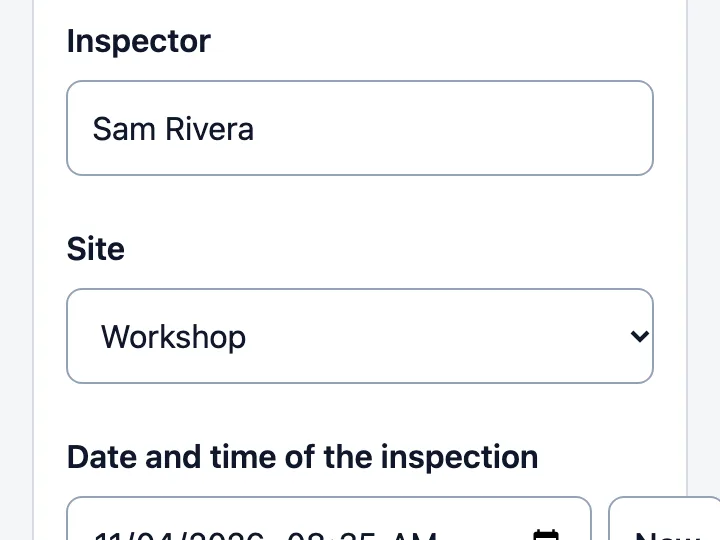
The page has the field kinds the template knows: short and long text, choice lists as buttons, a dropdown for a long list, yes / no / N/A checks, a date and time that starts at now, a place with Use my location, and photos. Any of them can be required. The page lists what's missing before it saves or sends anything.
Or make it with ChatGPT or Claude
The template's page also shows its prompt, under Use these instructions with ChatGPT or Claude. Copy it, write your shift on the last line, and paste it into the AI you use. It writes the page as one HTML file. Upload that file in the box at the top of this page and publish it, as the steps below show. A page your AI writes this way doesn't send reports to Convika by itself; to collect them, make the page on the template with Send to the dashboard.
How the outgoing shift hands it on
The page's own buttons hand the report on. They work on a published page:
- Save as PDF: the phone's print screen, photos included. A PDF opens on every phone.
- Share the report: the phone's share sheet, with the text and photos. Where a phone can't share from the page, the WhatsApp button opens WhatsApp with the report's text.
- Excel (CSV): one file with a header row, for an office that keeps a log in a spreadsheet.
- HTML with photos: one file with the photos inside, to keep or forward.
- Send to the dashboard: on a page made with it, each report's answers and photos arrive in your Convika dashboard as one form entry, and you get an email for each one. On the Free plan your dashboard shows 50 entries a month; later ones are kept, up to a limit.
In the preview, Send to the dashboard sends nothing: it sends once the page is published.
What stays on the phone
- Photos are kept while the page is open. Photos go out in the PDF, a share, or the HTML copy. Send to the dashboard sends the report's answers and photos.
- Typed answers stay until the next report. What someone types stays on that phone until they tap Start a new report, so a closed tab doesn't lose a half-written handover.
- Location needs a yes. Use my location asks the phone for its position, and the browser asks the person first. MDN says the Geolocation API works only in secure contexts (HTTPS), which a published Convika page is.
- Clicks are counted, not read. As on any published page, the text of each button pressed, such as "Save as PDF", is recorded as a click.
Compared with a paper log, a group chat, and Google Forms
| Way to hand over | Same questions every shift | Photos | A copy for the office | Where it's kept |
|---|---|---|---|---|
| Paper log at the desk | Yes, if the sheet is printed | No | Someone types it up | On the desk |
| A group chat message | No: each person writes their own | Yes | Scroll back for it | In the chat |
| Google Forms | Yes | Yes, after signing in to a Google Account | Yes, in Google Forms | In Google Forms |
| A Convika field report page | Yes | Yes, sent with Send to the dashboard, and in the PDF, a share, or the HTML copy | The answers and photos, with Send to the dashboard; the whole report as a PDF or CSV | Answers and photos in your dashboard; the PDF or share with whoever got it |
Publish the handover form in 4 steps
1. Make the page
Make it on the field report template and click Publish and send it to friends, or upload the HTML file your AI made in the box at the top of this page and click Keep this page — free, no card. Either way you sign up free, and the page moves into your account.
2. Publish it
Click Publish page. Under Who can open this page?, choose Public and click Next. The first time, click Publish free. A Public page can show up in search results and in Convika's gallery. That suits a blank form, whose reports aren't on the page; to keep it out, choose Private link or Only people with the password (Pro, $12 a month).
3. Try one shift yourself
Open the address under Live URL on your phone. Fill in a whole handover, add a photo, save the PDF, and send one to the dashboard. Check that the entry arrived and that the PDF reads well.
4. Put the link where the shift starts
Send the link to the team chat, or click Show QR code and print it for the desk or the door. Staff open the same link every shift. To change a choice list later, such as a new building, ask the AI to change it and publish again: the link and the QR code stay the same, as How to update an AI-made page without changing its link explains. Each change uses 1 AI credit.
Frequently asked questions
How do I make a shift handover form with AI?
Describe the shift on Convika's field report template, with your sites, checks, and the issues you track, and click Make my report form. Or copy the template's prompt into ChatGPT or Claude and upload the HTML file it writes. Publish the page and send its link to the team.
Can staff fill in a handover form on their phones without an app?
Yes. They open the link in the phone's browser. There's no app to install and no sign-in. What they type stays on their phone until they start a new report.
Can a handover form include photos?
Yes. Staff take or add photos on the page. Photos go out in the PDF, a share, or the HTML copy. Send to the dashboard sends the report's answers and photos.
How does the next shift get the handover?
The outgoing person saves the PDF or shares the report, on WhatsApp or another app, to the person taking over or the team chat. With Send to the dashboard, the answers and photos also arrive in your Convika dashboard, and you get an email for each one.
Can I change the form later without a new link?
Yes. Ask the AI to change a field or a choice list and publish again. The link and the QR code stay the same, so the printed code on the desk keeps working.
Is a shift handover form better in Google Forms?
Google Forms keeps every answer in one place and, if your company uses Google Workspace, can limit who answers to your company's domain. Its file upload needs each person to sign in to a Google Account. A Convika field report page needs no sign-in, and hands each report on as a PDF or on WhatsApp, photos included.
Sources
- Geolocation API (MDN Web Docs) (read on November 4, 2026)
- Choose a type of question for your form (Google Docs Editors Help) (read on November 4, 2026)
- Publish & share your form with responders (Google Docs Editors Help) (read on November 4, 2026)
Next step
How to see who visits a page you made with AI
Count visitors and see where they came from on a page ChatGPT, Claude, or Gemini made. GA4, Cloudflare, Plausible, Clarity, and Convika compared.
Related articles
- Send an HTML report to your manager so it opens properly on their phoneAn .html attachment opens as a preview or a download on a phone. Send a PDF when the report is done, or a link when it must run. Steps for each, compared.
- Free ways to host an AI-made HTML form for internal company useConvika, Google Forms, Jotform, Netlify, GitHub Pages, and SharePoint for a form colleagues fill in: what each free plan keeps, who can open it, and photos.
- Update your AI-made page without changing its link or QR codeFix a page you already shared: get the corrected HTML from your AI, upload it as the next version in Convika, preview it, and publish at the same link.
- How to send an HTML page on WhatsApp so it opens in one tapSent through WhatsApp's Document option, an HTML file arrives as a file. Send a link instead so it opens in their phone's browser.
- How to share an HTML file as a link that opens on any phoneEmail and Google Drive open HTML on a phone without scripts. Compare 5 hosts (Netlify Drop, Tiiny Host, Pagelive, GitHub Pages, Convika) and follow 4 steps.
- How do I open an HTML file on an iPhone, and how do I send one that opens?Tap an .html file in the iPhone Files app and you get a preview with no scripts. Open it in Safari with a free viewer, or send a link instead of the file.