
Free, no signup
RSVP link maker: an RSVP page with a form, free
Type your event's name, date, and place. Convika's AI makes an RSVP page with a form and an Add to calendar button. Share the RSVP link, and replies land in your dashboard, with email notifications.
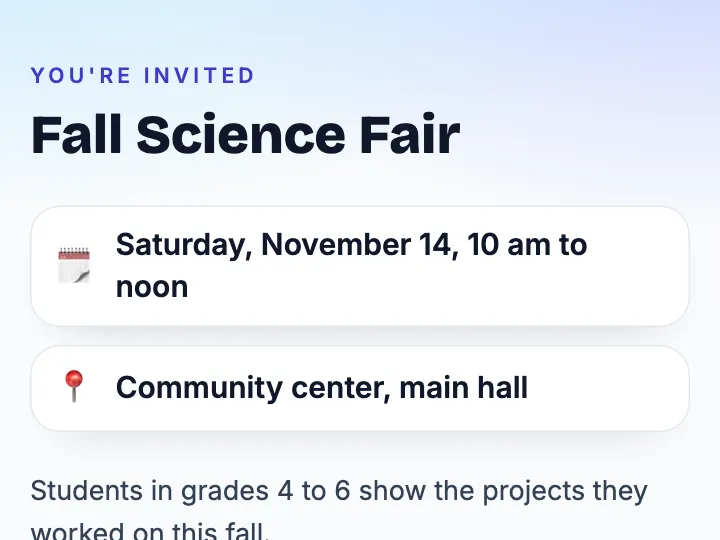
Your RSVP page
Convika's AI lays out your event and its RSVP form on one page. Try it on your phone right away, no account needed.
How to make an RSVP link
1
Type your event
Write the name, the date and time, the place, and what you want to ask each guest.
2
Get your RSVP page
In a few minutes the AI makes the page. Open it on your phone and see the form your guests fill in.
3
Send the RSVP link
Sign up free and publish. Send the link by text or email, or print its QR code on the invitation.
What's on your RSVP page
- The event's name, date, and place in large type at the top
- What to expect, what to bring, and your notes below them
- An RSVP form with the questions you choose, such as the number of guests
- Replies saved in your dashboard, with email notifications and a CSV download of the guest list
- An Add to calendar button that puts the event in the guest's calendar
- One page that fits a phone and opens with no app and no account
What Free gives and what Pro adds
On Free, your RSVP page is live at its own link, with a QR code in your dashboard for a printed invitation. Up to 50 replies a month show in your dashboard and reach you by email. Switch to Pro to see the ones saved beyond that.
Pro takes the Convika bar off your page, keeps 100 pages live at once, and opens a page only to people with its private link or password. Pro starts with a free trial: 7 days free, then $12 a month, cancel any time before it ends.
Frequently asked questions
Is the RSVP link free?
Yes. Making the page here is free and needs no account. To keep it, sign up for a free Convika account and publish it on the Free plan, with the RSVP form and the reply emails included.
How do guests RSVP?
They open the link, fill in the form, and press its button. Guests need no account and no app, and the page works on any phone.
Where do the replies go?
Into your Convika dashboard, under Form entries, with notifications by email. Download them as a CSV file to make the guest list.
Can I put the RSVP link on a printed invitation?
Yes. Your dashboard shows the page's QR code, ready to print. Guests point a phone camera at it and the RSVP page opens.
Can I change the event details later?
Yes. Ask the AI in your dashboard, such as "move the start to 6 pm", and publish again. The RSVP link and the QR code stay the same.
Guides
Make a free RSVP page for a birthday, shower, or party with AI
Publish the party page ChatGPT or Claude made with a reply form on Convika, free, and share a link or QR code. Evite, Partiful, and Paperless Post compared.
Make a wedding RSVP page guests reach from a QR code on the invitation
Have ChatGPT or Claude write your wedding RSVP page, add a reply form, and print its QR code on the invitation. Replies are listed for you, with email notifications, free.