
AI template
Make a class team quiz with AI
Enter a subject and topic, and the AI makes a team quiz page you can project in class.
Make your own
Convika's AI makes your own quiz in the example's format, fitted to what you write. Try it on your phone right away, no account needed.
Making it here is free and uses no AI credits. Once you sign up, each page the AI makes in your dashboard uses 1 credit, and new accounts start with 10.
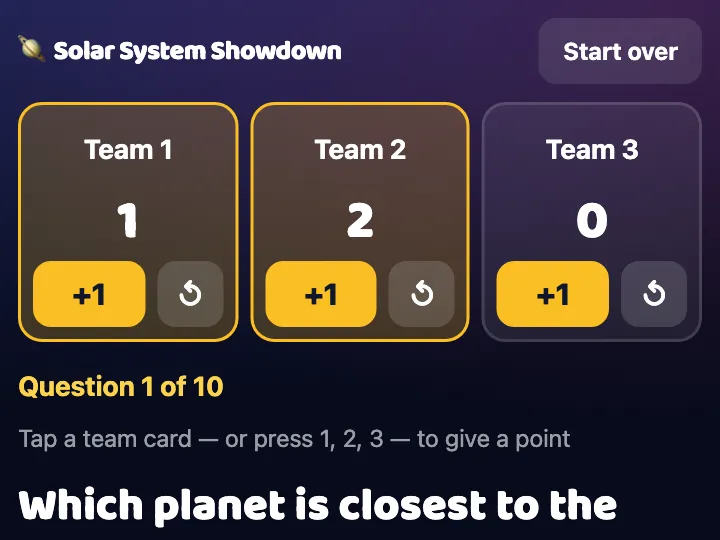
A quiz page for the last 10 minutes of a lesson or a review session: split the class into teams, show each question large, reveal the answer, and tap the team that got it to give a point.
Write your own questions, or give the subject and topic and let the AI write them. It uses no student names or logins. Scores stay in the browser you run it on.
How it works
1
Say what you want
Write what to change from the example: the subject, how many, the colors. Tap an idea to start from it.
2
The AI makes the page
Convika's AI writes the page in a few minutes, and you see a preview. Ask for changes in plain words until it's right.
3
Publish and share the link
Publish the page to get its own address, then share it on X, LINE, or in class.
What it costs
Making a page uses 1 AI credit, and each change you ask for uses 1. A new account starts with 10 credits, so you can try a template without paying. Publishing on the Free plan is free.
Don't use the names, images, or text of existing shows, games, characters, or brands. The AI makes an original page on the same theme.
Use these instructions with ChatGPT or Claude
This is the template's description of its example, as Convika's AI gets it. Write what you want on the last line, paste it into ChatGPT, Claude, or another AI, and it writes the page as one HTML file.
Make a team quiz page to project in class.

- Subject and topic: Grade 7 science, the planets of the solar system
- Questions: not given
  (If not given, write 10 questions on this topic, each with 1 correct answer and 3 wrong ones. Leave out any question you aren't sure of.)
- 3 teams. Team names can be changed on screen.
- Flow: show the question large → "Show answer" highlights the right one → tap the team that got it for 1 point (with undo) → "Next question".
- Keep every team's score at the top. After the last question, a results screen with the ranking.
- Big enough to read from the back row.
- Every button is at least 44px tall, including each team's +1 and undo, "Show answer", "Next question", and the answer choices (min-height: 44px; with Tailwind, min-h-[44px]).
- Save scores in the browser so a reload keeps them (nothing is sent anywhere). "Start over" clears them.
- No student names or logins.

Write it as one HTML file with the CSS and JavaScript inside. Don't send anything people type anywhere, and don't use image files. Make it work on a phone held upright. Keep the bottom right of the screen clear: a Support button may show there.

That is the example. Keep how it works, its screens, and its feel, and change the content to fit what I want.
What I want: ___
Questions
Do I have to write the questions?
No. Give the subject and topic and the AI writes the questions and choices. To use your own, write one question per line.
Does it store anything about students?
It uses no student names or logins, and scores are saved only in the browser you run it on. On a page published on Convika, the text of each button pressed, such as "+1" or an answer, is recorded as a click. No team's score is sent.
Can I change the quiz after it's made?
Yes. Ask the AI for changes while you look at the preview, such as "change the answer to question 3". Each change uses 1 AI credit.
Other templates
- Personality test
Pick a theme, and the AI makes a personality test page: a few questions, a result type, and a link to share it.
- Flashcards and quiz
List the words as front / back, and the AI makes flashcards you can flip plus a multiple-choice quiz.
- Memory match
List the pairs, and you get a memory game page where players flip cards to find matching pairs.
- Reaction time test
You get a game page that measures how fast people tap when the screen changes, in milliseconds.
- Catch game
Choose what to catch and what to dodge, and you get a game page where things fall from the top of the screen.
- Science or math simulation
Say what to simulate and for which grade, and the AI makes a page where students move sliders and watch what changes.
- Timer, calculator, or tracker
Pick a timer, a calculator, or a tracker and say what it's for, and the AI makes a tool page that's ready to use as soon as it opens.
- Event page and sign-up
Write the event's name, date, and place, and the AI makes a page that announces it and takes sign-ups.
- Shop menu and info
Write your shop's name and menu, and the AI makes a page that shows the menu, prices, and hours clearly on a phone.
- 1 in how many? roll
List some traits and their options, and you get a page that rolls a random combination, works out how rare it is, and lets players share it.
- 10-second score attack
Pick the emoji to tap and the time limit, and you get a game page where players tap pop-up targets for the highest score.
- Quiz battle
Write the questions or name a theme, and you get a timed four-choice quiz page where fast answers score more and players share their score to challenge friends.
- Stack tower
Pick the emoji that rides on top and the difficulty, and you get a game page where players tap to stack moving blocks as high as they can.